
CompuHost V3 Upgrade Activation Instructions
These instructions outline the simple steps necessary to upgrade an already activated CompuHost V1 or V2 License to a CompuHost V3 License.
IMPORTANT! These instructions are applicable only while activating CompuHost V3 on a computer with an already activated CompuHost V1 or V2 license as required. If your previous CompuHost V1 or V2 installation requires the use of a USB License Key (Dongle), please ensure it is plugged in and initialized prior to proceeding.
1. First, download and install CompuHost V3 utilizing the Installer applicable to your current CompuHost V1 or V2 Licensing Model:
Click the applicable installer download link below...
GEN-II License Model: Originally activated utilizing an assigned License ID and Password.
GEN-I License Model: Requires a plug-in USB License Key (Dongle).
2. After installation (step 1 above), launch CompuHost V3. (IMPORTANT! GEN-I USB LICENSE KEY (DONGLE) USERS ONLY: Please ensure your CompuHost V1 or V2 License Key (Dongle) is properly inserted and initialized prior to launching CompuHost V3).
If a valid CompuHost V1 or V2 license is found during launch, you should encounter the following dialog...
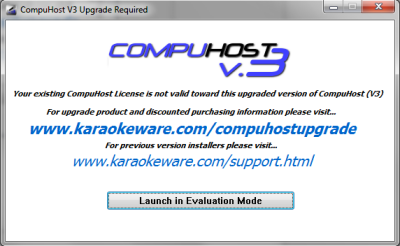
3. Click the "Launch in Evaluation Mode" button to continue.
IF YOU FAIL TO ENCOUNTER THE ABOVE DIALOG, NO CURRENTLY ACTIVATED COMPUHOST V1 OR V2 LICENSE WAS FOUND ON THE COMPUTER AS REQUIRED. IF YOUR EXISTING COMPUHOST V1 OR V2 INSTALLATION REQUIRES THE USE OF A PLUGGABLE USB LICENSE KEY (DONGLE), CHECK TO ENSURE IT IS PLUGGED IN AND PROPERLY INITIALIZED, AND ALSO ENSURE YOU HAVE DOWNLOADED AND INSTALLED COMPUHOST V3 UTILIZING THE CORRECT INSTALLER. STOP HERE AND RETURN TO STEP 1.
4. After fully launching CompuHost V3, select "Help->Activate Software Upgrade" from the Top Main Menu.
The following dialog should appear...
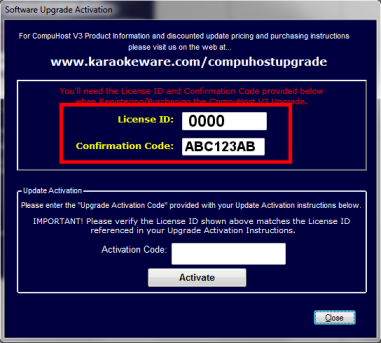
5. Take note of the License ID and Confirmation Code provided within the dialog (see above).
Upon completion of your online CompuHost V3 Upgrade purchase, you should have recieved an email similar to the following...
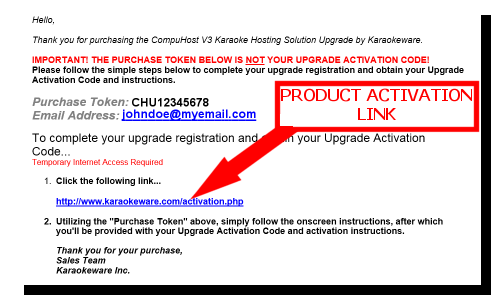
6. Click the link provided in the email (see above) to automatically open your browser to the KaraokeWare Product Activation webpage.
7. Your login credentials (Purchase Token and Email) should already be filled in for you, if not, simply enter the credentials also provided within the Activation Instructions sent via email (above) and LOGIN.
8. Once successfully logged into the Product Activation System, you should encounter the following dialog...
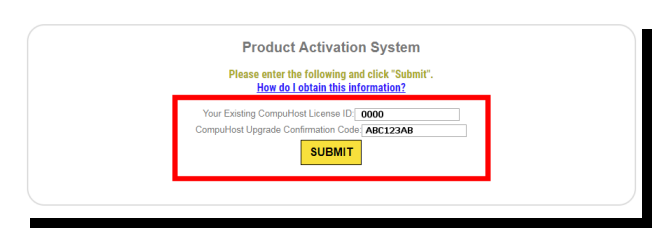
9. Simply enter the License ID and Confirmation Code obtained earlier in Step 5 and click "Submit".
If successful, you should encounter the following final activation instructions...
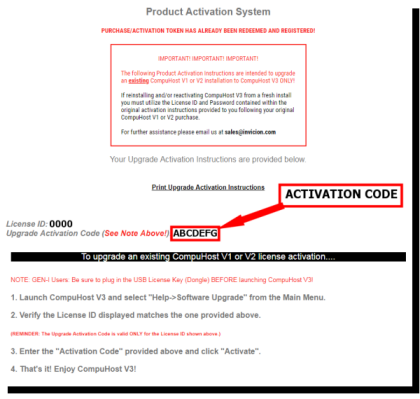
10. Take note of the "Upgrade Activation Code" provided onscreen.
11. Once again, launch CompuHost V3, bypassing all startup dialogs and select "Help->Activate Software Upgrade" from the Top Main Menu.
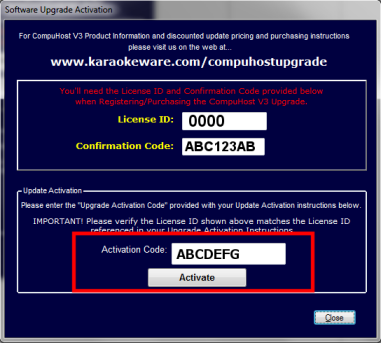
12. Enter the "Upgrade Activation Code" obtained in Step 10 above and click "Activate".
THAT'S IT! We hope you enjoy CompuHost V3!