
The CompuHost Remote Request Addon (KIOSK) utilizes a "Client-Server" architecture, whereby two separate applications (Client and Server) are required to be installed, properly configured, and capable of communicating with each other through a reliable computer network (Wired or Wireless).
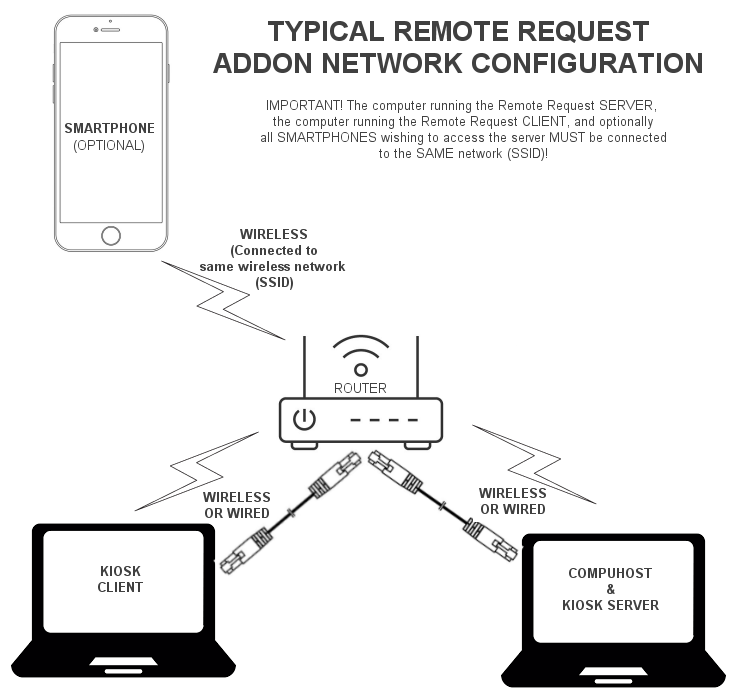
IMPORTANT! All of the following MUST be completed and/or exist in order for the addon to function correctly...
 The "SERVER" component of the addon must be installed, properly configured, and running on the Karaoke Host's computer. (The computer running CompuHost).
 The "CLIENT" component of the addon must be installed, properly configured, and running on the remote computer(s). (The computer(s) your audience will use to select and submit selections)
 Both computers (Client and Server) must be connected together through an unrestricted and properly configured computer network (wired or wireless) to facilitate communications (talking to each other).
Let's run through the steps involved...

Install the "SERVER" component on the Host computer (CompuHost computer).
1. Download the Remote Request Addon Installer by CLICKING HERE.
NOTE: The Remote Request Addon Installer will be utilized to install both the SERVER and CLIENT components on their respective computers.
2. Launch the Installer on the "HOST" computer (CompuHost computer).
3. Continue through the installation process until you reach the "Select Components" dialog (see below).
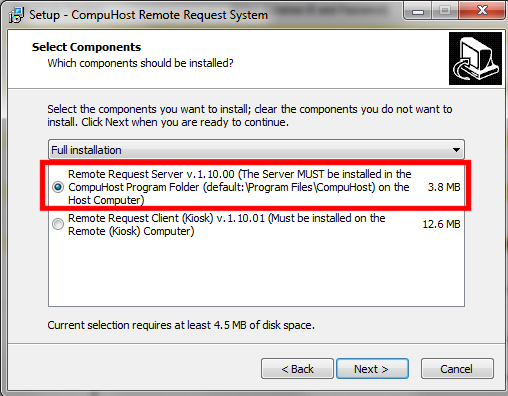
4. Ensure you select the "Remote Request Server" selection and continue through to the completion of the installation process.
IMPORTANT! The Server component MUST be installed into the exact same folder location as your existing CompuHost installation. (Default: C:\Program Files\CompuHost or C:\Program Files (x86)\CompuHost).

Install the CLIENT component on the Remote Computer(s)
1. Utilizing the SAME Installer as previously downloaded and used for installing the SERVER component (above), launch the Installer on the Remote computer and once again continue through the installation process until you reach the "Select Components" dialog. (See below)
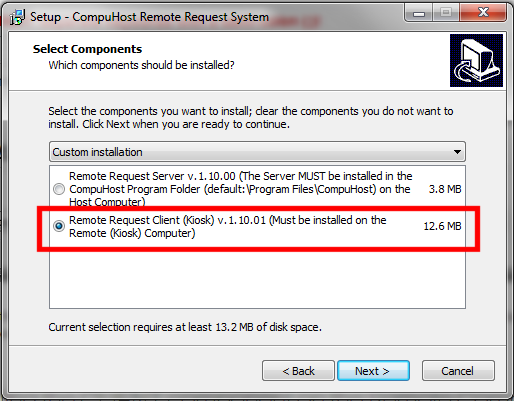
2. This time, select the "Remote Request Client (Kiosk)" selection and continue through the completion of the installation process.

Ensure BOTH computers (Client and Server) are properly connected and able to communicate with each other through a reliable and properly configured computer network (Wired or Wireless).
1. Connect both computers to the SAME computer network.
2. If utilizing a Wireless connection, both computers must be connected to the same wireless network as identified by the Network Identifier (SSID) assigned when configuring the network.
- Select the Network  or
or  icon in the notification area.
- In the list of networks, choose the network that you want to connect to (MUST be the same for both the SERVER and CLIENT computers), and then select Connect.
- Type the security key (often called the password).
- Follow additional instructions if there are any.

Launch both components (SERVER and CLIENT) on their respective computers.
After ensuring both components (SERVER and CLIENT) are properly installed on their respective computers, AND ensuring both computers are properly connected to the SAME local computer network, proceed by launching both components, always beginning with the SERVER...
FIRST, ALWAYS LAUNCH THE SERVER BEFORE LAUNCHING THE CLIENT:
1. Launch CompuHost and select "Tools/Addons->Activate Remote Requests" from the Top Main Menu.
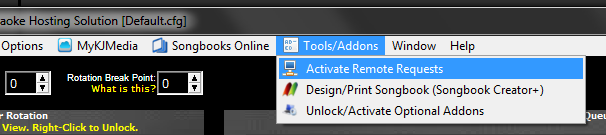
2. If properly installed, the server component should automatically launch and a new icon should appear in your Windows Task Bar at the very bottom of your computer screen (see below).

3. Click the Server Icon (see above) to open the Server Dialog (see below).
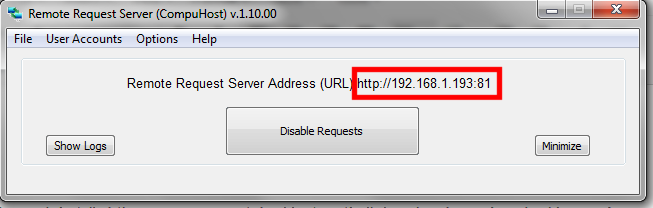
4. Take note of the "Remote Request Server Address (URL)" shown on the dialog, it may be needed later in the event the Client fails to automatically locate the server on the network.
NEXT, LAUNCH THE CLIENT:
1. Launch the "Remote Request Client (KIOSK)" application on the Remote Computer.
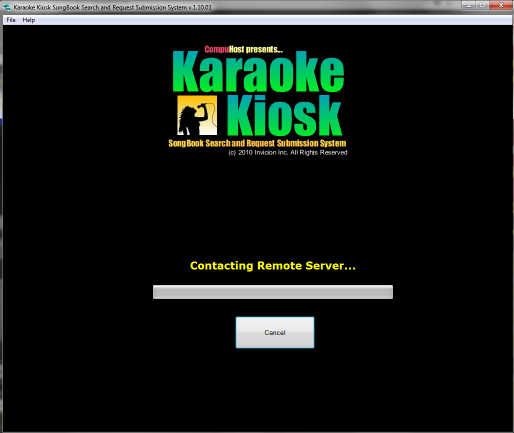
2. The dialog above should appear briefly while the Remote Client searches and locates the SERVER on the network.
If the above dialog remains visible indefinately, the Remote Client may be having trouble locating and/or communicating with the SERVER as required. (Click CANCEL and refer to the Troubleshooting section below.)
3. If all goes well and the Remote Client is successful in locating and connecting to the SERVER, you should encounter a dialog similar to the following...
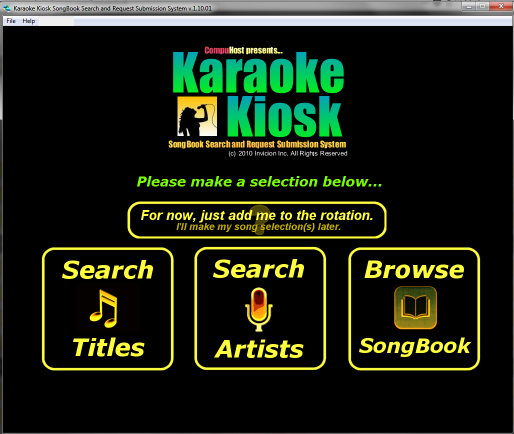
THAT'S IT, THE REMOTE REQUEST ADDON IS READY FOR YOU TO ENJOY!
TROUBLESHOOTING
Please understand that Computer Networks are inherantly and technologically complicated, whereby configuration and setup of the various components often differ vastly among providers and brands. In many cases, proper configuration and troubleshooting may require "hands on" access to the network, a service we are obviously unable to provide. Therefore, please understand that we're unfortunately limited as to the level of troubleshooting advice we'll be able to provide. If the following fails to assist you in resolving the issue(s), it may be necessary to seek the services of a qualified computer networking professional.
PROBLEM: Remote CLIENT fails to locate and connect with the SERVER...
This is most often caused by one or more of the following...
1. The SERVER component has NOT been installed and/or is NOT running on the Host (CompuHost) computer as required. Please refer to the applicable sections above to install and activate the SERVER component on the Host (CompuHost) computer.

2. Both computers (CLIENT and SERVER) are NOT properly connected to the SAME local computer network as required. Please refer to the section detailing the process above  .
.
3. A misconfigured "firewall" (or similar) system protection utility may be installed on either (or both) computers that may be blocking or inhibiting communications between the CLIENT and SERVER. Many "Virus Protection" utilities include Firewall functionality as part of their protection suite. Please be aware that many such utilities require permissions be granted on an individual "application basis", therefore simply because you are able to access the network through your browser, does NOT guarantee the Remote Request Addon components are likewise permitted to access the network. Please refer to the documentation and/or help resources provided by the utilities for firewall configuration instructions.
SUGGESTION: As a diagnostic step, you may wish to temporarily disable all Virus Scanner and Firewall utilities on both the CLIENT and SERVER computers and retry. If the components (CLIENT and SERVER) successfully connect, one or both Virus Scanner and/or Firewall utilities are the culprit.
4. The Remote CLIENT is unable to automatically locate the SERVER on the network.
In this event, you may wish try manually configuring the SERVER IP address within the Remote CLIENT settings by...
- Select "File->Setup" from the the Remote CLIENT Top Main Menu (see below)
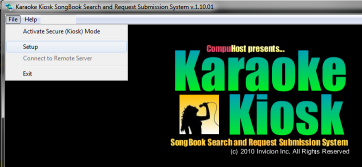
- The following Setup dialog should appear.
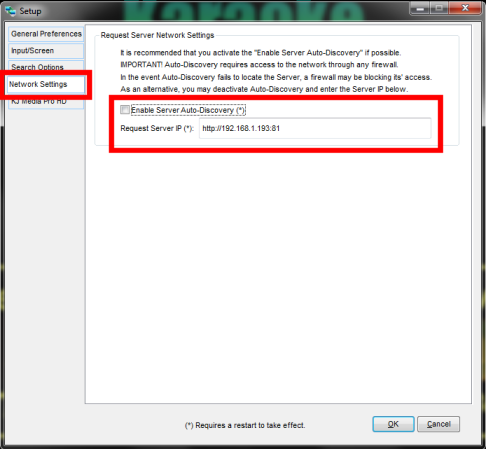
- Select "Network Settings" from the left panel.
- Deactivate the "Enable Server Auto-Discovery" option.
- Enter the "Server IP Address" derived in Step 3 of the section above entitled "LAUNCH SERVER"  .
.
- Click "OK"
- Shutdown and restart the Remote CLIENT component.
If after performing all of the above troubleshooting steps, your issue(s) remain, you may need to consider seeking the services of a qualified computer networking professional.
For additional Help and Setup instructions please reference the built-in Help System (Remote Client->Main Menu->Help->Karaoke Kiosk Help) or you may reference the Online Help System by CLICKING HERE.