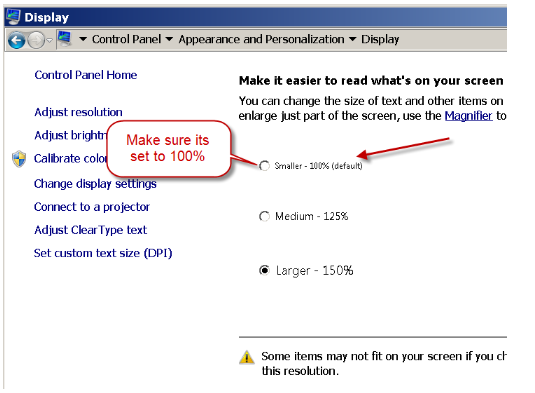
CompuHost employs numerous onscreen controls in order to provide our valued users fast and convenient access to the vast features and functionality available. In order for the many controls to position and display correctly, your Windows Screen Scaling and Layout MUST be set to 100% (no scaling).
Depending on your Windows version (Windows 8.1 and 10 or Windows 7 and 8.0), please scroll down for simple instructions regarding resetting your display scaling...
Windows 8.1 and 10
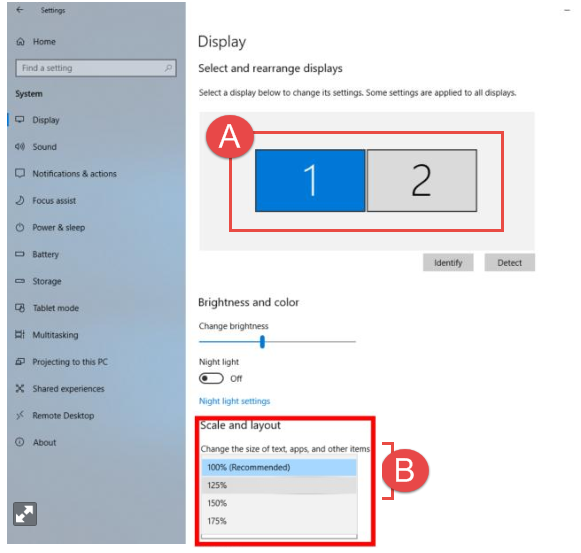
Click on Start > Settings > System > Display.
-
Select and highlight the first connected monitor (A)
-
Select "100%" from the Scale and layout drop down selections. (B)
-
Repeat steps 1-2 for each connected monitor.
Windows 7 and 8.0
-
Click on Start Menu > Control Panel > Under Appearance and Personalization click on Adjust Screen Resolution
-
On Screen resolution screen find option which says “Make text and other items larger or smaller” click on that.
-
Make sure your font scaling is set to 100%. If its not 100% then change it and click Apply to save settings. It may prompt you to log off and log in back.