
EXTREMELY IMPORTANT - PLEASE READ!!! When transferring your existing CompuHost Song Catalog and Performer History to a new/different computer, you MUST ensure the the storage location and folder structure of your Karaoke song files (MP3+G etc.) remain EXACTLY the same between installations. For users utilizing external and transferrable storage drives (USB Hard Drive etc.), simply transfer the same storage drive to the new computer and you'll be fine. However, for locally stored files, you MUST copy the entire folder structure (AS IS) to the new/replacement computer so the full folder/file paths remain valid.
To transfer your existing CompuHost Song Catalog and Past Performer History to a new/replacement computer (PLEASE READ IMPORTANT NOTE ABOVE!) , simply COPY all datafiles (*.tps) files found within the CompuHost Program Folder (Default: "C:\Program Files\CompuHost" or "C:\Program Files (x86)\CompuHost") onto a backup media (flashdrive etc.).
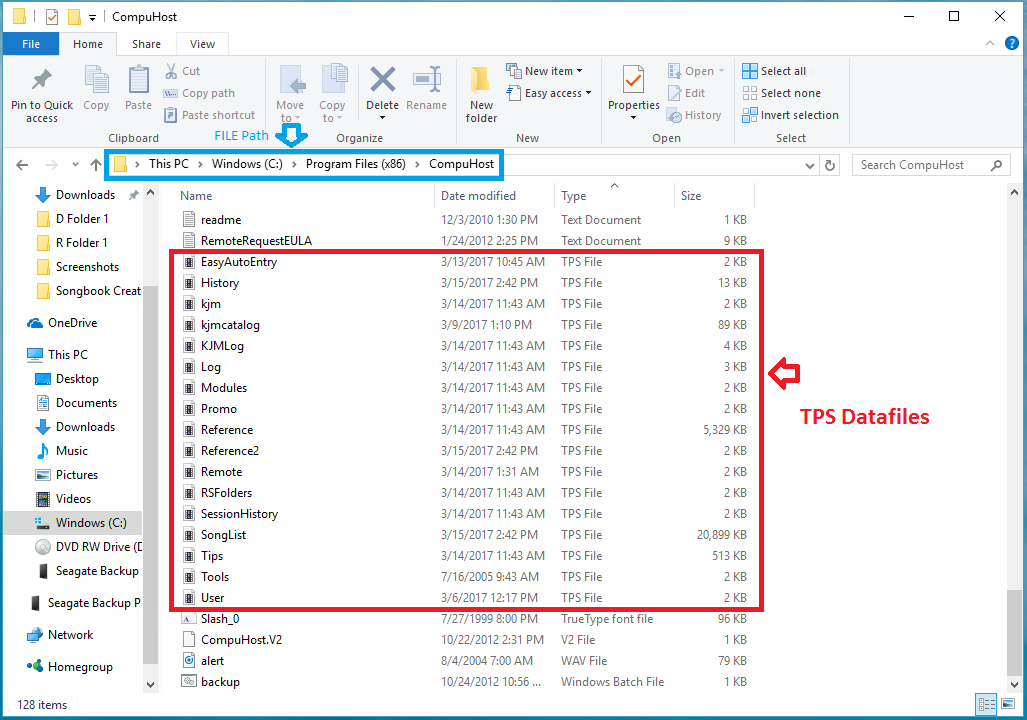
Instructions:
- Open the Windows File Explorer.
- Open the C: Drive
- Select and open the CompuHost Program Folder (Default: "C:\Program Files\CompuHost" or "C:\Program Files (x86)\CompuHost")
- Select and COPY all datafiles (*.tps) onto a movable/transferrable storage media (flashdrive etc.)
After successfully copying all datafiles (*.TPS) files onto the moveable media, transfer the media to the new/replacement computer and simply copy ALL datafiles from the moveable media into the new CompuHost Program Folder (Default: "C:\|Progam Files\CompuHost" or "C:\Program Files (x86)\CompuHost"), overwriting the original data files.