
The following instructions deal explicitly with the optional configuration of the Remote Request Submission System (Kiosk) CompuHost Addon when used in combination with the MyKJMedia Karaoke Content Delivery services (Karaoke Cloud / Sound Choice PRO).
For general instructions on the configuration and use of the CompuHost Remote Request Submission System Addon please refer to the built-in Remote Request Submission Help System (Remote Request Server->Main Menu->Help->CompuHost Remote Server Help) or you may access the online Remote Request Submission System Addon User's Manual by clicking here.
STEP 1
First, you'll need to create the necessary KJ Media Catalog export file within CompuHost...
-
Launch CompuHost . (CompuHost V2 or V3 (v.2.10 or newer) required).
-
Select "MyKJMedia->Configure/Manage MyKJMedia" from the CompuHost Main Menu.
-
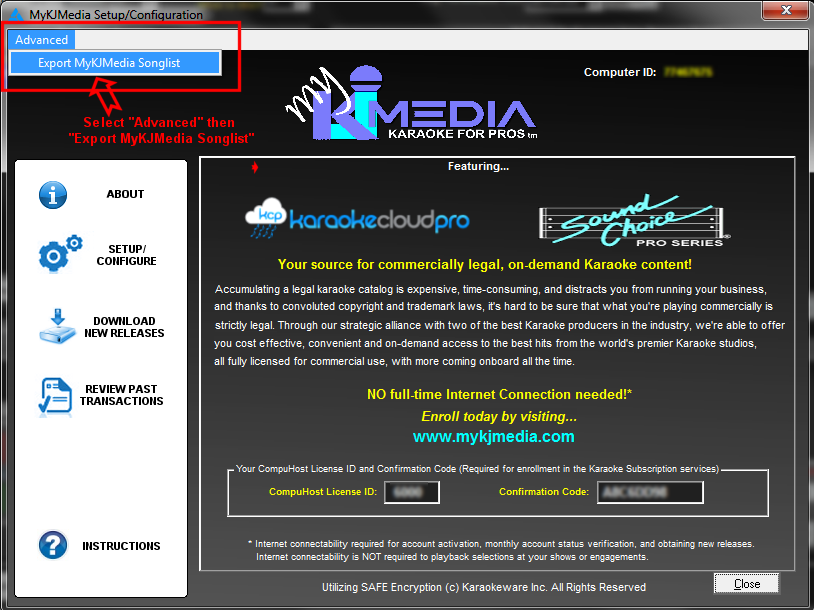
The "MyKJMedia Setup/Configuration" dialog will appear.
-
Select "Advanced->Export MyKJMedia Songlist" from the top menu (See above).
-
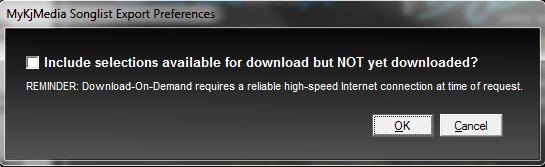
If you've activated the MyKJMedia "Download-On-Demand" feature and expect to have Internet access at your show locations, you may opt to include all available, but NOT yet downloaded MyKJMedia selections. REMINDER! Please be reminded that reliable Internet access MUST be available at the time of remote request in order to download selections "on-demand" at your shows or venues.
- A new KJ Media Catalog Export File labeled "KJMediaCatalog.csv" will be created and saved in the CompuHost program folder (default: "C:\Program Files\CompuHost" or "C:\Program Files (x86)\CompuHost").
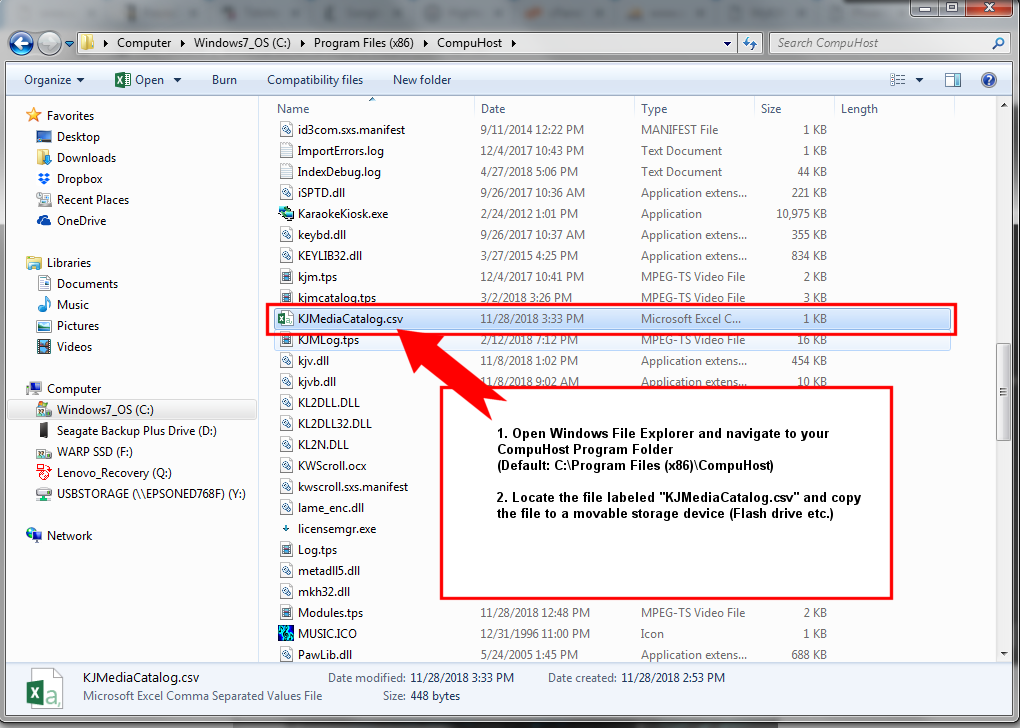
- Open Windows File Explorer and navigate to the CompuHost Program Folder (Default: C:\Program Files (x86)\CompuHost). Locate and the file labeled "KJMediaCatalog.csv" and copy the file to a movable storage device (Flash Drive etc.).
IMPORTANT: Be sure to leave the original MyKJMedia Catalog Export in its original location on the CompuHost "Host" computer.
STEP 2
Next you'll need to configure each "Remote Request Client (Kiosk)" to offer and accept MyKJMedia requests...
-
Move the movable storage device (Flash Drive etc.) to the remote (KIOSK) computer and place a copy of the KJMedia Catalog Export file (KJMediaCatalog.csv) created in Step 1 above into the "Remote Request Client" program folder. (default: "C:\Program Files\CompuHost" or "C:\Program Files (x86)\CompuHost").
-
Ensure the Remote Request Server is launched and running on the CompuHost "Host" computer.
-
After ensuring an up to date copy of the "KJMediaCatalog.csv" has been copied into the Remote Request Client (KIOSK) program folder (see above), launch the Remote Request Client (Kiosk) application on the remote computer.
-
Select "File->Setup" from the Remote Request Client (Kiosk) Main Menu.
-
Select the "KJ Media Pro" tab found on the left of the "Setup" dialog.
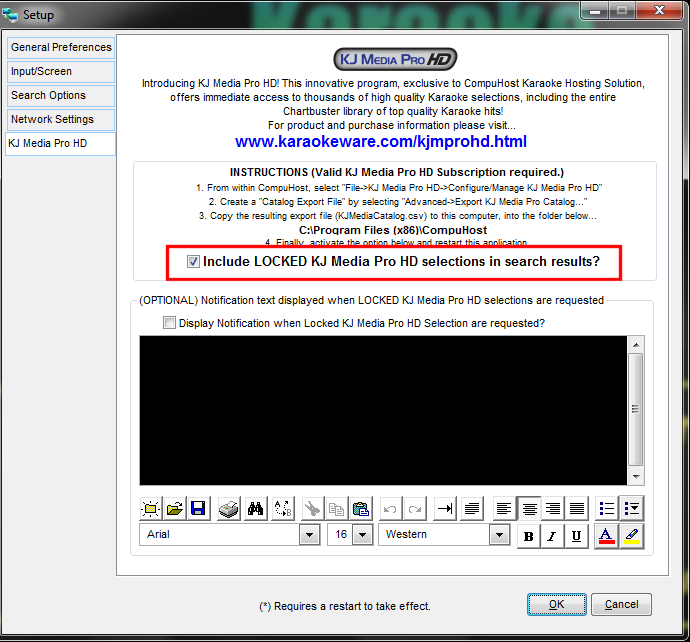
- Activate the "Include LOCKED KJ Media Pro selections in search results" option. NOTE: The reference to "LOCKED" is carried over from an earlier and now retired service. Simply disregard any reference to "LOCKED" moving forward.
- Optionally you may activate and designate a custom "Alert Message" that is provided to remote (Kiosk) user when selecting "Locked" selections. Karaoke Cloud and Sound Choice PRO subscribers should NOT activate this option.
- Click "OK"
- Shutdown and restart the Remote Request Client (Kiosk) so the changes may take effect.
IMPORTANT REMINDER! You must be sure to update the MyKJMedia Catalog Export file on each Remote (Client) computer after adding (downloading) new MyKJMedia selections. Simply follow the instructions outlined in Step 1 above and copy the newly created KJ Media Catalog Export file to each Remote (client) computer, overwriting the previous file as necessary.
STEP 3
NOTE: You may skip this step if you do NOT wish to offer access to Wireless Smart Devices (Smart Phones, Tablets)
(For instructions on submitting request via wireless Smart Devices please refer to the built-in Remote Request Submission Help System (Remote Request Server->Main Menu->Help->CompuHost Remote Server Help) under the topic "Using the Remote Request System->Submitting Requests via Smart Devices" or you may access the Remote Request Submission System Online User's Manual by clicking here .)
To configure the "Remote Request Server" to accept MyKJMedia requests from Wireless Smart Devices (Smart Phones, Tablets etc.)...
-
From within CompuHost, select "Main Menu->Options->Activate Remote Requests".
NOTE: If the "Options->Activate Remote Requests" selection is not available, the Remote Request Server may NOT be properly installed. Please ensure the Remote Request "SERVER" module is properly installed into the same program folder as your CompuHost installation (default: "\Program Files\CompuHost" or "\Program Files (x86)\CompuHost"). After ensuring the "SERVER" is properly installed into the correct Program Folder, shutdown and restart CompuHost. The "Options->Activate Remote Requests" selection should now be available to you.
-
The "Remote Request Server" should load automatically, minimized and placed into your Windows task bar.
-
Locate and click the "Remote Request Server" button found on the Windows Taskbar to open the Remote Request Server dialog.
-
Select "Options->Setup Options" from the Top Menu of the Remote Request Server dialog.
-
Select the "KJ Media Pro" tab found on the left of the "Remote Request Server Setup" dialog.
-
Activate the "Include LOCKED KJ Media Pro selections in search results" option.
-
Optionally you may designate a custom "Alert Message" that is provided to Wireless Smart Device users when selecting a "Locked" selection through their Web Browser. (Please refer to the built-in Remote Request Submission Help System (Remote Request Server->Main Menu->Help->CompuHost Remote Server Help) under the topic "Using the Remote Request System->Submitting Requests via Smart Devices" or you may click here to access the Online User's Manual) Karaoke Cloud and Sound Choice PRO subscribers should leave this blank.
-
Minimize (DON'T CLOSE) the Remote Request Server dialog back to the Windows Task Bar.
Managing incoming "remotely requested" MyKJMedia song selections...
(For general instructions related to the use of the "Remote Request Submission System (Kiosk) Addon" please refer to the CompuHost built-in Help System (CompuHost->Main Menu->Help->CompuHost Help) under the topic "Option CompuHost Addons->Remote Request System (Kiosk)" or you may click here to access the CompuHost Online User's Manual)
-
When a remote user submits a MyKJMedia selection it is placed in the onscreen "Remote Requests" queue found on the Main Screen of CompuHost.
-
A locked "KJ Media Pro" selection will be easily identifiable by a "LOCK" icon, likewise a "Karaoke Cloud" or "Sound Choice PRO" selection will be identified by a "CLOUD" icon.
-
Simply add the selection to the performance lineup as usual.
-
If the request is a locked "KJ Media Pro" selection, the KJ Media Pro "Unlock" dialog will automatically appear, from which you may unlock the selection if desired. Optionally you may unlock the selection by selecting it from within the "Remote Requests" queue, Right-Clicking your mouse and selecting "Unlock MyKJMedia Selection" from the drop-down menu. Once successfully unlocked simply add the selection to the performance lineup as usual.